Beongeurim
Turn a picture you could not read into a picture in the language you understand. It uses your own Gemini key, and neither your pictures nor your key are kept on the Beongeurim side.
The tool is still being built. So that this site is useful even before it opens, we describe in detail how to get a key and how the tool works.
What does this tool do?
Upload a picture that contains foreign text, such as a menu, a notice, a product description or a screenshot of a settings screen, and the tool reads the text, translates it and gives you back one picture with the translated text in it. It is not a list of translated sentences: the picture itself changes, and you can download it.
Translation uses a free Gemini API key that you make yourself. That is why we also explain how to make the key, with pictures, so that even a first-time user can follow along.
Four steps from original to translated picture
- Find and read the text — it finds where the text is in the picture, marks each place with a box and reads what is inside.
- Join connected lines and translate in context — lines are not translated one by one. Lines that belong together are joined into one sentence and translated together with the mood of the whole picture.
- Erase the original text — the place where the original letters were is filled in to match the background.
- Put in the translation — the translation is drawn in, with the size, line breaks, color and slant fitted to the box.
We also plan to take care of vertical text, line breaks that follow the shape of speech bubbles, text color and outline, switching between original and translation, and fixing wrong lines by hand. When the model is busy (a 503 error) the tool tries again, and it shows its progress while you wait.
Why nothing stays on our server
Beongeurim has no server that receives pictures. When you open the tool, your own browser sends the request straight to Google with your own key. Beongeurim only hands out the page files and stays outside the path that pictures and keys travel on.
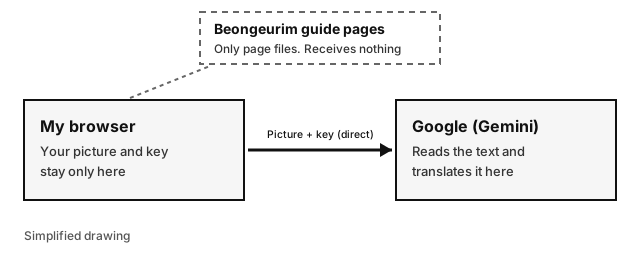
Something may still be kept on the Google side, though. Please read 'Before you start' below. Your key is remembered on this device only if you yourself turn on 'Remember on this device'. By default it is not remembered and disappears when you close the tab. Even then it is kept only in the browser storage of the tool page, and the tool page has no ad scripts.
How sound effects and tone are handled
Sound effects (lettering such as BANG or thump-thump)
By default we leave the original as it is and add small translated text next to it. A sound effect is part of the artwork, so erasing and redrawing it easily looks wrong. In the picture settings you can switch to 'erase and redraw in the target language' or 'do not touch sound effects', and you can also change it by hand for each box. Whether a piece of text is speech, a sound effect or a sign is sorted out by the model while it translates.
Tone and context
Before translating, the tool first decides what the scene is like, who is speaking, how the speakers relate to each other and whether the speech is polite or casual. If you upload several pages in a row, the table of characters and speech styles decided on earlier pages is passed on to the next page so the voice stays consistent. We also plan to add a place where you can write down characters, speech styles and terms yourself.
Fonts
The model picks, line by line, the feel of the original lettering, for example bold gothic or handwriting, and the translation is drawn in a font that matches that feel. Only open fonts that are free to use are used, and they are served directly from the tool's own address so that your translated text is not sent to another company's font service.
Before you start
- You must be 18 or older. The Gemini API terms require this.
- Pictures uploaded with a free key may be used by Google to improve its services (training) or reviewed by people. Do not upload sensitive pictures (ID cards, private photos with faces, confidential documents and the like).
- In the European Economic Area (EEA), the United Kingdom and Switzerland, the terms require a paid key.
These three lines are shown in exactly the same way at the top of the tool page. Beongeurim has no way to check your age or your region, so it does not block anyone and only tells you. This is not legal advice. If you are unsure, read Google's terms yourself.
A free key can be used a limited number of times per day. For the models we checked it was about 20 times a day per model; for models we did not check, we do not know the number. When one model is blocked, we plan to switch to another one.
How to get started
First you need a Gemini key. If this is your first time, you can make one in about five minutes by following the guide below.
The real address of the tool
The tool opens only at the address below. When you open the tool, check that exactly these characters appear in the address bar. Do not enter your key at a similar-looking address.
https://beongeurim-tool.pages.dev
The tool has not opened yet. When it does, a link to it will appear on this page. The guide pages and the tool have different addresses, so ads appear only on these guide pages and there is not a single ad on the tool page.