How to get a Gemini API key
This explains how to make your own key in Google AI Studio. You only need to follow the screens, and it takes about five minutes. The screen pictures below are from the Korean-language version.
What you need
- One Google account (a Gmail address is fine)
- You must be 18 or older — this is the age the Gemini API terms require
- A browser on a computer or phone
- A key is like a password. Do not send it to anyone or post it on social media or in a chat room.
- The Beongeurim server does not receive your key. The key goes only from your browser to Google.
-
Open the AI Studio key page
Type the address below into the address bar of your browser, or click it to open it.
https://aistudio.google.com/apikeyIf you are not signed in to Google, a sign-in screen appears first. Choose your account and press the button that continues to the next step. If this is the first time you use the account, a screen asking you to accept the terms may appear, so read it before you go on.
According to the official documentation, when a new user accepts the terms, AI Studio automatically creates a default project and one API key. If there is already a key in the list you may use it, or you may make a new one starting from step 2 below.
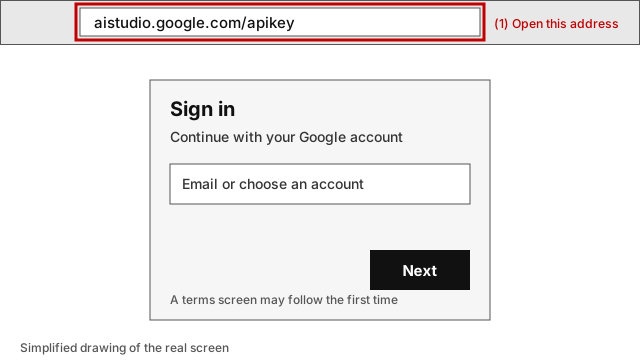
This is a simplified drawing of the real screen. The look of the sign-in screen depends on the state of your account. -
Press the create-key button
After you sign in, the API keys list screen appears. At the top right of the screen, find the button for creating an API key and press it (in the Korean screen of the picture its name is 「API 키 만들기」). In the picture below, the red box marks that button.
The screenshots show the Korean-language screen. The wording on your screen may differ.
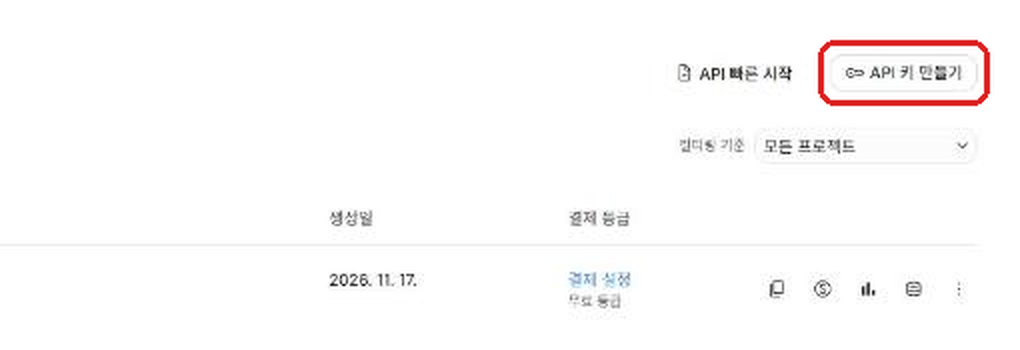
This is the real screen (personal information is hidden). On a phone the letters look small. Press the picture to open it at its original size. The position of the button can differ a little with the screen size. In that case, look for the button with the same purpose. The menu on the left side of the list has these items, as named in the Korean screen: 「API 키 · 프로젝트 · 사용량 · 비율 제한 · 지출 · 결제」 (API keys, projects, usage, rate limits, spend, billing).
-
Enter a name and choose a project
A window for creating a new key opens (in the picture: 「새 키 만들기」). It has two fields.
- The key name field (in the picture: 「키 이름 지정」) — enter a name that is easy to recognize. At first 'Gemini API Key' is already entered. You may leave it as it is.
- The project field (in the picture: 「가져온 프로젝트 선택」) — if this is your first time, 'Default Gemini Project' is already selected. You can leave it as it is.
When you are ready, press the create-key button at the bottom right (in the picture: 「키 만들기」). To stop, press the cancel button next to it (in the picture: 「취소」).
The screenshots show the Korean-language screen. The wording on your screen may differ.
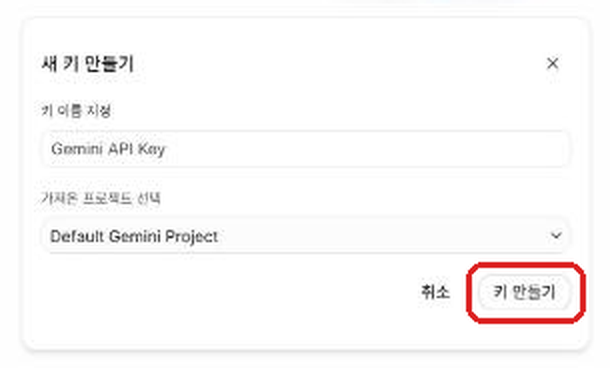
This is the real screen. If you do not have a project yet
When you press the project field, a list opens. There you can press the item for creating a new project (in the picture: 「+ 프로젝트 만들기」) to make a new project. The list also has an item for importing a project (in the picture: 「프로젝트 가져오기」), which is for people who already used Google Cloud and want to bring in an existing project. If this is your first time, you do not need it.
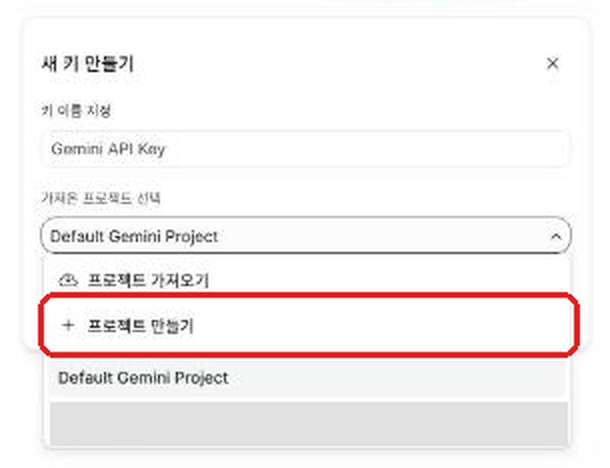
This is the real screen. If it says you do not have permissionAccording to the official documentation, in a project that has an administrator, such as a work or school account, you may see a message that you do not have permission to create a key. In that case, ask the administrator for permission, or make a new project that does not belong to an organization and use that. With a personal Google account this usually does not matter.
-
Copy the key
When the key has been made, a new row appears in the list. Among the icons at the right end of that row, press the copy icon to copy the key. There are several icons at the right of the row (copy, billing, usage, data and a three-dot menu).
The exact look can differ from screen to screen. If a separate field appears where you can view the key, copying it from there works just the same. A key is usually one long line of letters and numbers mixed together.
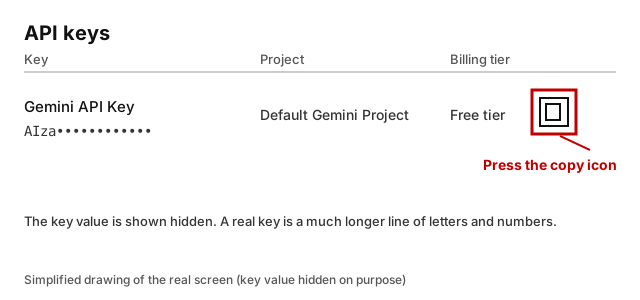
This is a simplified drawing of the real screen. The example key value is hidden on purpose. Do not paste the copied key just anywhereIf you paste the key where other people can see it, they can send requests with your key. Paste it only into the key field of the Beongeurim tool.
-
Paste it into the Beongeurim tool
When the tool is open, the field for the key appears at the top. Paste the key you copied (Ctrl+V on a computer; on a phone, press and hold the field and choose 'Paste').
Before that, check the address bar first. The real address of the Beongeurim tool is only the one below. Do not enter your key at a similar-looking address.
https://beongeurim-tool.pages.dev- 'Remember on this device' is off by default. If you leave it off, the key disappears when you close the tab.
- You may turn it on if you use only your own computer or phone. Do not turn it on at school, in an internet cafe or on a borrowed device.
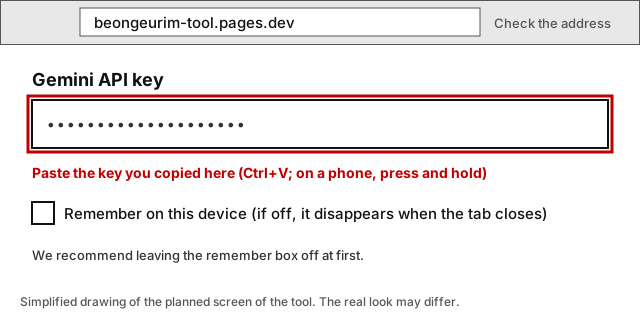
The tool is still being built, so this is a simplified drawing of its planned look. The real screen may differ. You can make your key in advance even if the tool has not opened yet.
Keeping the key safe and deleting it
The official documentation says to treat a Gemini API key like a password. If it leaks, someone else could use up your project's usage, or unexpected charges could arise.
- Do not send it to anyone. Make sure the key does not show up in messengers, social media, public boards or screen sharing.
- The Beongeurim server does not receive your key. The key goes only from your browser to Google. Even so, always check that the tool address above is correct.
- On a shared device, do not turn on 'Remember on this device', and close the tab when you are done.
To delete a key
Go back to the API key list in AI Studio, open the three-dot (⋮) menu at the right end of that key's row and choose delete. The words in the menu may differ a little from screen to screen. It is safer to delete a key once you have finished with it or when you are not using it.
If you think the key may have leaked
The official documentation gives this order.
- Make a new key.
- Replace the key in the place where you used it with the new key.
- Check that the new key works, and then switch off or delete the old key.
- Look at the usage and check whether there is any use you did not make.
Common questions
Do I have to set up billing?
No, you do not. According to the official documentation, a new account starts on the free tier, and the free tier lets you use some models within set limits. If the billing tier column of the key list shows the free tier (in the Korean screen of the picture: 「결제 등급」 and 「무료 등급」), it is a free key.
If you press the link for billing setup in the same column (in the picture: 「결제 설정」) and connect a billing account, you can move up to the paid tier. If you want to use it only for free, do not press it. The key-creation window we saw had no field that asks for payment information.
What is the 'daily limit'?
It is the number of requests you can send per day with a free key. The official documentation says limits are measured in three ways, requests per minute, text (tokens) per minute and requests per day, and if you go over any one of them you get an error.
- Limits apply to the project, not the key. Even if you make several keys in the same project, the limit is counted together.
- The daily limit starts again at midnight US Pacific time. In Korean time that is around 4 p.m. (during US daylight saving time) or around 5 p.m. (otherwise). This Korean time is a value we calculated ourselves.
- The limit differs by model. For the models the Beongeurim team checked, it was about 20 times a day, but this can change. You can see the exact numbers for your own key on the rate-limit screen in the left menu (in the picture: 「비율 제한」).
Translating one picture takes one request or more. So the number of pictures you can translate in a day may be fewer than 20.
I get a 429 error
429 means 'too many requests' and is a signal that you went over a limit. The official documentation also says that going over a limit causes a 429 error. In that case, wait a little and try again, or, if the daily limit is used up, wait until the time when the limit starts again (explained above). We are building the Beongeurim tool so that it tries another model when a 429 happens.
In a similar way, 503 means Google's side is busy. Try again a little later.
A key I made earlier does not work
According to the official documentation, starting May 28, 2026, new keys made in AI Studio automatically become 'auth keys'. Also, the Gemini API does not accept old-style keys that have no restrictions, and unrestricted keys that have gone unused for a long time are blocked and shown with a Blocked tag. For such a key, making a new key is faster than trying to fix it.
I lost my key
Whether you can see a key again in the AI Studio key list may differ from screen to screen. If you cannot find it, make a new key by following steps 2 to 4 above, and delete the lost key from the list. Even if you make a new one, the daily limit carries over as long as it is the same project.
The official documentation says 'do not put keys in web apps'?
That warning in the official documentation is about a developer who hard-codes their own key into the web app's code so that every visitor ends up using that key. Beongeurim does not do that. Beongeurim contains no key at all, and each person uses their own key in their own browser. Still, the key is in your browser all the same, so check the tool address and turn off the remember function on shared devices.
I live in Europe or the UK
The Gemini API terms say that for services offered to users in the European Economic Area (EEA), the United Kingdom and Switzerland, only paid services may be used. So we tell people in these regions that they need a paid key. This is not legal advice. Please check the terms on Google's site yourself.
Official documents we used
- Using Gemini API keys — kinds of keys, projects, security, keeping keys safe
- Billing — the free tier and the paid tier
- Rate limits — limits and the 429 error
Google can change the screens and the policies. If this guide differs from the official documentation, the official documentation is right.
Once you have made your key
When the Beongeurim tool opens, paste the key as in step 5 above. The tool is still being built.